1. What it does
Mini Scripts is available on all MaxxECUs, available as an option in the Math channels but also as a Mini Script Outputs, to directly script code an output.
This page only describe the Mini Script language and syntax.
2. The simplest case - Writing a formula
Most of the time you just write a normal math formula. For example:
•A * B + C
•(A + B) / 2
•A * 0.5 + 10
That is it. No "return", no semicolons, no special setup. The value of the formula is the result.
You can use the standard math operators:
+ add
- subtract
* multiply
/ divide
% remainder (for example, 7 % 3 is 1)
** power (for example, A ** 2 is A squared)
Parentheses ( ) group things together exactly like on a calculator. When in doubt, add parentheses to make the order of operations clear.
Numbers can be written normally (5, 12.34), in scientific form (1.5e-3 means 0.0015), in hexadecimal (0x0F = 15) or binary (0b1100 = 12).
3. Built-in functions
Basic math:
ABS(x) absolute value, always positive.
SIGN(x) -1 if negative, 0 if zero, +1 if positive.
SQRT(x) square root.
POW(x, y) x to the power of y (same as x ** y).
EXP(x) e to the power of x.
LOG(x) natural logarithm.
Trigonometry:
SIN(x) sine, x is in radians
COS(x) cosine, x is in radians
TAN(x) tangent, x is in radians
Rounding:
FLOOR(x) round down to nearest whole number
CEIL(x) round up to nearest whole number
ROUND(x) round to nearest whole number
Range and interpolation:
MIN(x, y) the smaller of the two values
MAX(x, y) the larger of the two values
CLAMP(x, lo, hi) keeps x between lo and hi
LERP(a, b, t) blends from a to b using t (0 = a, 1 = b)
MAP(x, inMin, inMax, outMin, outMax) scales x from the input range to the output range and clamps to the output limits; input and output ranges may rise or fall (e.g. MAP(x, 44, -10, 0, 123)).
Validity:
ISNAN(x) 1 if the value is invalid, 0 otherwise
Global variables and timers (shared between all expressions):
GET(i) reads global variable number i (0 to 7)
SET(i, x) stores x in global variable number i (0 to 7), and also returns x
GETTMR(i) reads how much time is left on timer number i (0 to 7), in seconds
SETTMR(i, s) starts timer number i (0 to 7) counting down from s seconds, and also returns s
4. Making decisions with IF
Sometimes you want the result to depend on a condition. Use IF for this:
if A > 5 then
return 0
end
return C
This means: if A is greater than 5, the result is 0. Otherwise the result is C.
You can also add ELSE and ELSEIF for more cases:
if A > 90 then
return 100
elseif A > 50 then
return 50
else
return 0
end
Comparison operators you can use in IF conditions:
> greater than
< less than
>= greater than or equal
<= less than or equal
== equal to
!= not equal to
You can combine conditions with AND, OR and NOT:
if A > 50 and B < 10 then ...
if A > 90 or B > 90 then ...
if not (A == 0) then ...
Important: when you use IF, you must use the word "return" to say what the result is. The simple one line form (just a formula) is only available when there is no IF.
5. Local variables
If a formula gets long, or you need to use the same value more than once, you can give it a name with "local":
local rpm_factor = A * 0.001
local load = B + C
return load * rpm_factor
This makes formulas easier to read and faster, because the value is only calculated once. You can have up to 8 local variables. A local variable must be declared with "local" the first time it is used.
Note: You cannot create a local with the name A, B, C, D or E, and you cannot change the value of A to E. They are inputs only.
6. Comments
Anything after two dashes is a comment and is ignored:
-- this is a comment
return A * B -- multiply the two inputs
Use comments to explain what a formula does so you remember later.
7. Reading live values from the ECU (RTDATA)
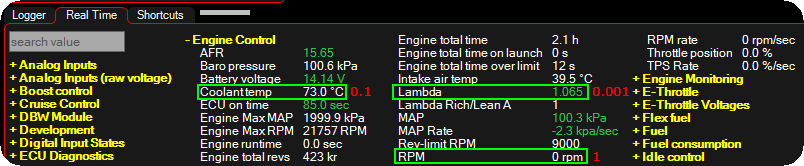
As well as your five inputs A to E, an expression can read any live value the ECU is currently measuring or calculating. RPM, throttle position, sensor voltages, and so on. These are called RT-values (real-time values).
Just write RTDATA. followed by the name of the value you want:
RTDATA.RPM
When you type RTDATA. in the editor, a list of every available value pops up automatically, so you do not have to remember the exact names. Start typing to narrow the list down.
RTDATA.NAME reads just like a number; you can use it anywhere a value is allowed:
Example:
if RTDATA.RPM > 6000 then
return 100
end
Example:
local boost = RTDATA.MAP - RTDATA.BARO_PRESSURE
return boost
RTDATA examples
A simple weighted average of two inputs:
(A * 0.7) + (B * 0.3)
Convert a 0 to 5 volt signal to a 0 to 100 percent value:
CLAMP(A * 20, 0, 100)
Output zero below a threshold, otherwise pass A through:
if A < 10 then
return 0
end
return A
A simple lookup style decision:
if A > 6000 then
return 100
elseif A > 3000 then
return 50
else
return 0
end
8. Global variables (shared between all expressions)
GET(i) reads global variable number i (0 to 7)
SET(i, x) stores x in global variable number i (0 to 7), and also returns x
9. Timers (shared between all expressions)
GETTMR(i) reads how much time is left on timer number i (0 to 7), in seconds
SETTMR(i, s) starts timer number i (0 to 7) counting down from s seconds, and also returns s
The ECU gives you 8 countdown timers, numbered 0 to 7. Each one is simply a number of seconds that ticks down towards zero on its own, in the background, whether or not your expression is running.
You start a timer with SETTMR, giving it the timer number and how many seconds it should run for:
SETTMR(0, 5) -- start timer 0 counting down from 5 seconds
From then on, timer 0 counts down by itself. You can check how much time is left at any point with GETTMR:
GETTMR(0) -- how many seconds are left on timer 0
When a timer reaches zero it stops there and stays at zero until you start it again. So the usual way to test "has the time run out?" is to check whether the timer has reached zero:
if GETTMR(0) <= 0 then
return 1 -- timer has finished
end
return 0 -- still counting
Like global variables, the timers are shared between all expressions. If one expression starts timer 0, every other expression sees the same timer counting down, and reads the same time remaining. Pick a timer number for each job and keep to it, so two expressions do not fight over the same timer.
Timer resolution: Timers normally count in steps of 0.001 second (1 millisecond), which is plenty for short delays. For very long times the steps automatically become whole seconds instead, because a single number cannot hold both a very large value and a tiny fraction at the same time. In practice this means short timers are accurate to the millisecond, and long timers are accurate to the second.
Note: Setting a timer to 0 (or a negative value) makes it count as already finished straight away. Re-running SETTMR on a timer that is still counting simply restarts it with the new time. SETTMR returns the value you gave it, so you can use it inside a larger formula if you like.
Examples:
-- Start a 2 second timer when input A goes above 90, then report
-- whether we are still inside that 2 second window.
if A > 90 then
SETTMR(0, 2)
end
if GETTMR(0) > 0 then
return 1 -- within 2 seconds of A last being high
end
return 0
10. Bitwise operators
For working with flags, masks and individual bits, you can use bitwise operators. These treat the value as a whole number (no decimals) in the range 0 to 65535 (16 bits). Any fractional part is dropped, and the result is always kept within those 16 bits.
& AND (a bit is 1 only if it is 1 in both values)
| OR (a bit is 1 if it is 1 in either value)
^ XOR (a bit is 1 if it differs between the two values)
~ NOT (flips every bit; written in front of a value, like ~A)
<< shift left (A << 2 moves the bits 2 places left, i.e. multiply by 4)
>> shift right (A >> 2 moves the bits 2 places right, i.e. divide by 4)
These work best with whole numbers, and pair nicely with hexadecimal and binary literals.
Examples:
A & 0x0F keep only the lowest 4 bits of A
A | 0b0001 make sure the lowest bit is set
A ^ B bits that differ between A and B
~A flip all 16 bits of A
A << 3 shift A left by 3 (same as A * 8)
A >> 1 shift A right by 1 (same as A / 2, rounded down)
You can mix them with the normal math and IF conditions:
if A & 0b0100 != 0 then
return 1
end
return 0
Note: anything outside 0 to 65535 wraps around to fit in 16 bits, and decimals are truncated (for example 5.9 is treated as 5). If you need a bit count or shift amount of 16 or more, the result is simply 0.
11. Safety and limits
The language is designed to be safe even if a formula has problems:
•Dividing by zero gives 0 instead of crashing.
•Invalid math (like the square root of a negative number) gives 0.
•Taking the LOG of zero or a negative number gives 0.
•There is a built-in limit on how much work a single expression can do, so a faulty formula can never freeze anything.
Note: If something does go wrong, the result will simply be 0.
Mini Scripts use 32-bit floating-point values internally for all calculations. When a value is returned to the ECU, it is automatically converted to the ECU's scaled 16-bit internal representation, where applicable.
Bitwise operators are intentionally limited to 16-bit operands, matching the ECU's native integer format. This ensures consistent and predictable behavior while avoiding unexpected results caused by wider integer operations.
See User Scripts (LUA) for the GEN2 platform, which support native 32-bit integer and floating-point operations, making them suitable for advanced calculations, data processing, and bit manipulation.
12. Things you cannot do
To keep things small and fast, this is not a full programming language. The following are not supported:
•Loops (no "while", no "for")
•Defining your own functions
•Strings or text
•More than 8 local variables
•Writing to inputs A to E, or to any RTDATA value (they are read-only)
If you need something more complex, split the calculation into several Mini Scripts and pass values between them using SET and GET.
13. Examples
Built-in functions examples:
MIN(A, 100) never lets the value go above 100
MAX(A, 0) never lets the value go below 0
CLAMP(A, 0, 100) keeps A in the range 0 to 100
SQRT(A * A + B * B) length of the vector (A, B)
LERP(20, 80, C) if C goes from 0 to 1, output goes from 20 to 80
Smoothly blend between two values based on C (where C is expected to be 0 to 1):
LERP(A, B, CLAMP(C, 0, 1))
Distance from a target value:
ABS(A - B)
A safe division that never blows up even if C is zero:
A / MAX(C, 0.001)
Check whether a particular status bit is set (here bit 2 of A):
if A & 0b0100 != 0 then
return 1
end
return 0
Combine two sets of flags and keep only the lowest byte:
(A | B) & 0xFF
|